VoxelVision is a Blender add-on that turns a 3D model into Minecraft blocks and saves the result as a schematic. It suits statues, creatures, vehicles and landmark shapes that would take days to place by hand. It does not finish the job for you: the conversion gives you a rough, correctly proportioned build, and you refine it in game. This guide walks the whole path and says plainly where it falls short.
What you end up with
- A model from a sculpt, a scan or a generated mesh, converted to blocks in Blender.
- A
.schemfile (or an Axiom blueprint) that you paste into a Java world. - A list of the usual problems and how to avoid them before you export.
What VoxelVision is
VoxelVision (formerly BlockBlender) is a paid Blender add-on with a free trial, now at version 4. Version 4.2.0 (September 2026) added support for Minecraft 26.3. It voxelizes a mesh with Blender's geometry nodes and shows the blocks live in the viewport. It is not affiliated with Mojang or Minecraft.
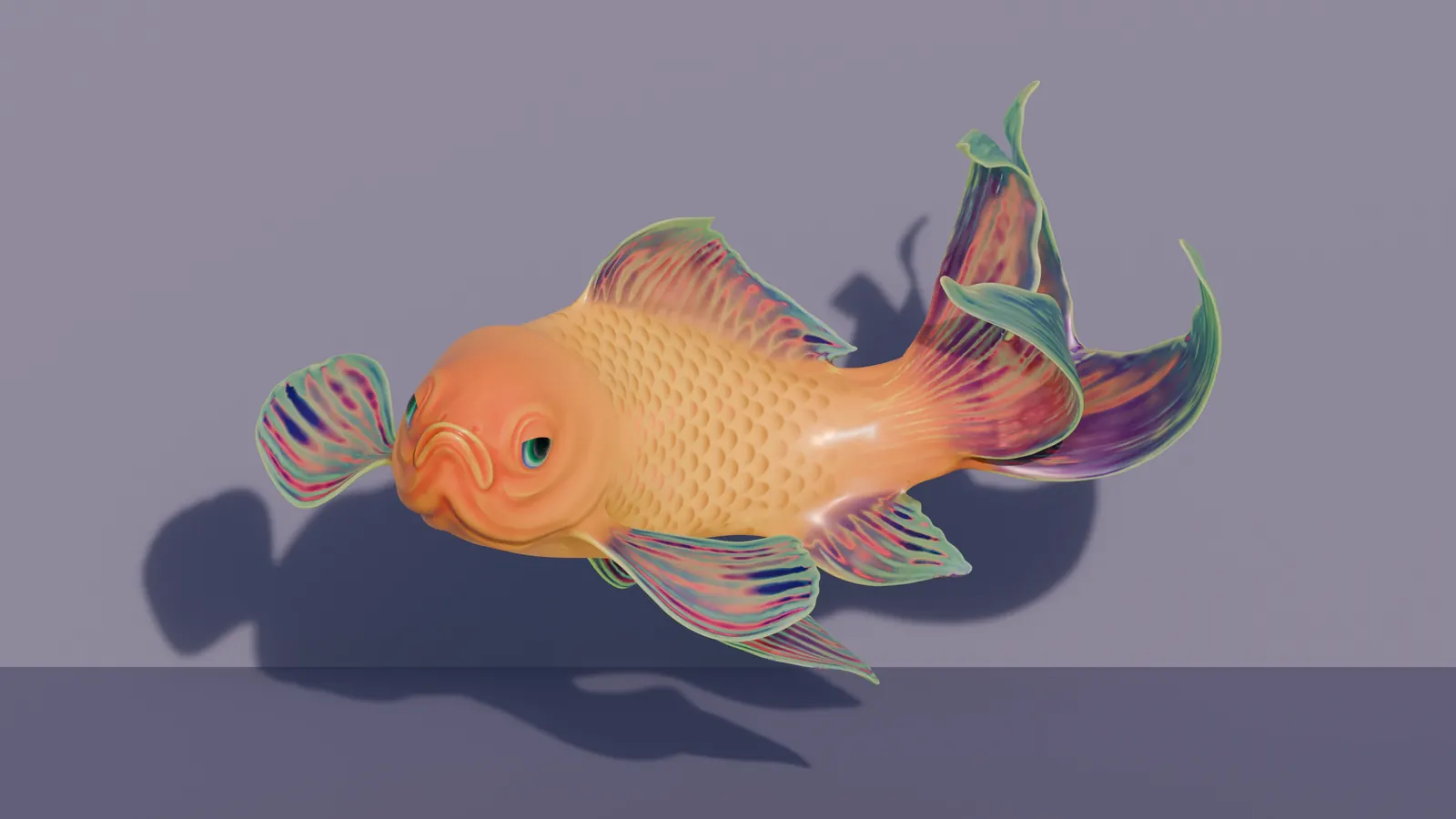
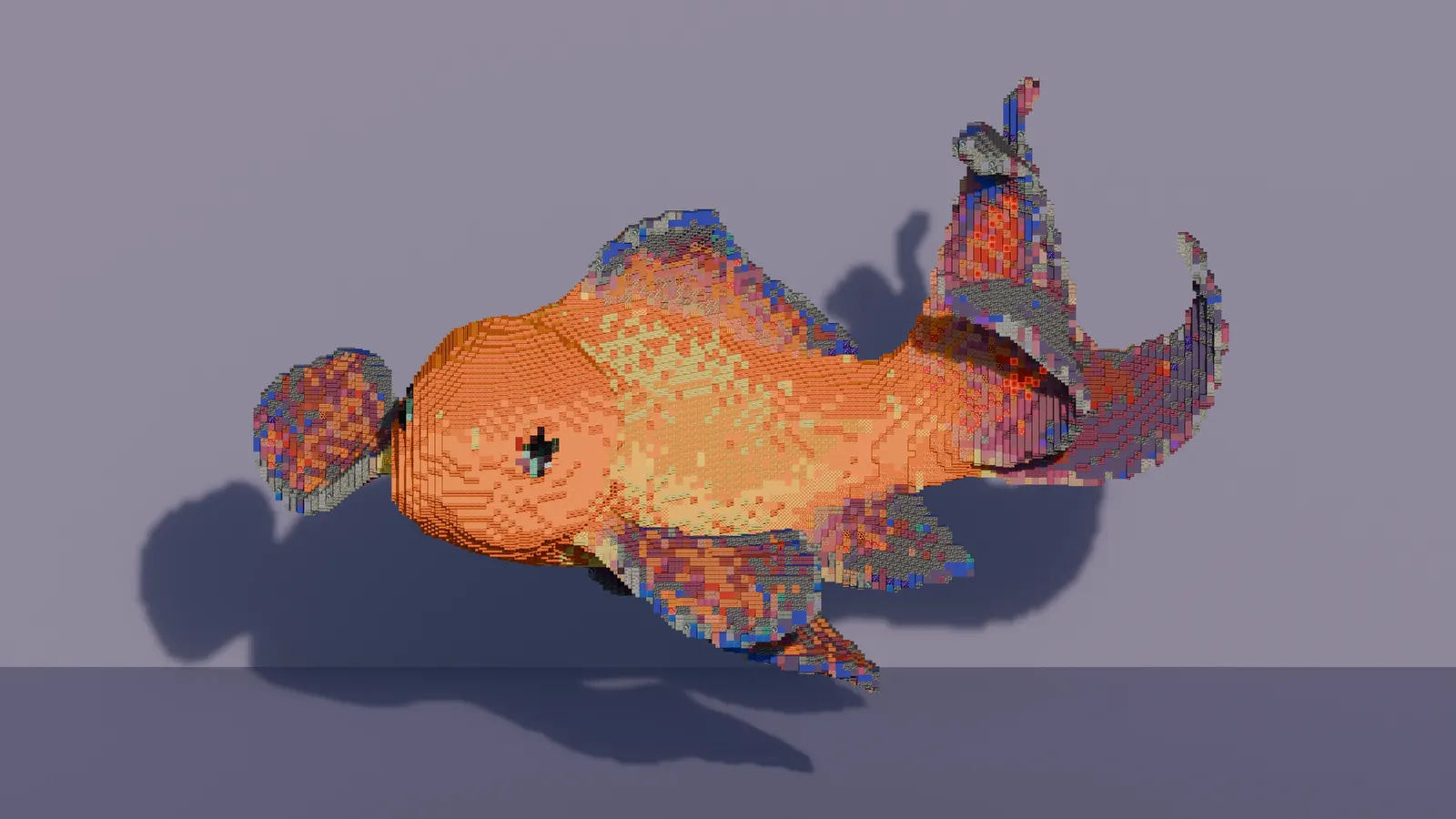
| Price | A free trial tier (stone-only, full blocks only, with schematic export). VV Studio is a one-time $19.99 on the VoxelVision site (stairs and slabs, 450+ block textures, schematic and Axiom blueprint export, batch export). VV Commercial is $69.99 and adds a commercial licence. The Superhive marketplace lists $22.99 and $79.99, so check the store you buy from. |
|---|---|
| Blender | The Superhive listing gives Blender 4.5 to 5.2, and version 4.1.0 moved the add-on to Blender 5.2 LTS, so 5.2 is the safe pick. Blender is free. |
| Exports | .schem (Sponge version 2, never the old .schematic), .bp (Axiom blueprint) and .mcstructure (Bedrock) |
| Imports in game | WorldEdit (.schem), Axiom (.bp and .schem), Litematica (.schem) |
| Needs | A copy of Minecraft: the add-on builds its block texture database from your game files |
See the VoxelVision toolbox page for a short summary.
Before you start
- Blender and VoxelVision installed. Install the add-on from Blender's preferences, as the add-on's page explains.
- Minecraft Java Edition, so you can point the add-on at a game
.jarwhen it asks to create its texture database. Version 4 can also add other versions and mods to the database. - A way to paste: WorldEdit or Axiom. The Axiom vs WorldEdit guide helps you pick.
- A model. Blender imports glTF (
.glb,.gltf), OBJ, FBX, STL and other formats from File, Import, and you can also sculpt directly in Blender.
Step 1: get the model clean
The conversion is only as good as the mesh. VoxelVision lists these as known limits, so deal with them first:
- The mesh should be clean: no holes and no duplicate vertices. Join separate parts into one object.
- Recalculate normals (select all in edit mode, Shift + N) if parts disappear or stairs face the wrong way.
- Very thin or very small parts may not convert. Thicken them or scale the model up.
- If the model has several textures, bake them to one image first (Bake, Diffuse in Blender). VoxelVision samples vertex colours, then base colours, then image textures, in that order.
Meshes made by a generator or a scan are often messy: holes, loose pieces, millions of triangles. A quick clean-up in Blender (merge by distance, delete loose parts, decimate) saves you from missing blocks later.
Step 2: scale to a block size
The FAQ says one Blender metre is one block. A 2 metre figure becomes a figure 2 blocks tall, so decide the build size first, then scale the model to it. Press S to scale, then Ctrl + A to apply scale. The add-on can display the model's length, width and height in blocks, with half blocks counted for slabs, so use it as your size check.
Block count grows with the cube of the size. Doubling the height of a solid object multiplies its volume by eight, so a statue that is comfortable at 40 blocks tall may be unmanageable at 120. Check the dimensions, and the blocks you will need if you plan to rebuild it in survival.
Step 3: convert to blocks
- Select the model and open the VoxelVision panel (N key, sidebar).
- Choose a voxelization method. The add-on offers several, among them Volume Based, Precision, Better Hole Resistance and Best Performance, which also handles meshes with holes. If blocks are missing, try another before touching the mesh.
- Turn on stairs and slabs where you want smoother curves. They are placed when a full block does not fit inside the model, and need VV Studio or VV Commercial.
- Pick the palette. Use the preset categories or build a custom palette, and exclude blocks that do not fit your build. The colour of each block comes from sampling its texture, and the add-on matches your model to the closest one.
- Optionally add noise to break up flat areas, or use the gradient tools to colour a model without any texture.
You can choose your blocks before you open Blender. Palettes shows themed sets with value checks, and the block library sorts every block by colour and can find the blocks nearest to a colour from your model. Each block page lists its closest colours.
Step 4: check the result
- Orbit the blocks from every side. Look for holes in thin parts and for colours that merged into one flat block.
- Use the layer option to view the build slice by slice, from the bottom up, as you would place it.
- Turn on the world direction display so you know which side is north after the paste.
- If the original mesh vanished, it is only hidden: turn it back on in the outliner.
Step 5: export a schematic
Export .schem for WorldEdit, FAWE, Litematica and Axiom, or .bp if you will only use Axiom. The exporter always writes the Sponge version 2 format whatever Minecraft version you target, and it has been tested against Axiom, Litematica and WorldEdit on the recent versions. Older game versions may not read it, depending on the tool. The same .schem is what BlockLab's own Gradient tool exports.
Step 6: paste it in game
With WorldEdit
Put the file in plugins/WorldEdit/schematics (Bukkit servers) or config/worldedit/schematics (Fabric, NeoForge). Stand where the build should go, then:
//schem load statue
//paste -a
WorldEdit pastes relative to your position, and -a skips air so existing terrain stays. Use //paste -n first to see the area it would use. Very large builds may hit WorldEdit's edit limits; see //limit, and consider FastAsyncWorldEdit if you paste often.
With Axiom
Use File, Import Schematic in editor mode, which loads the file into the clipboard, then place it with Ctrl + V and confirm with Enter or Ctrl + V again. Axiom can also open .bp blueprints from its blueprint browser. Axiom imports one schematic at a time.
What it can and cannot do
| It does well | It does not do |
|---|---|
| Overall shape and proportions of a large model | Detail smaller than one block. Fingers, thin spikes and wires drop out. |
| Colour zones and gradients across a surface | A pixel-perfect copy of the texture. The match is to the closest block colour and can be a little off. |
| Hundreds of block types, with stairs and slabs in the paid tiers | Interiors, redstone, lighting or entities. It makes blocks in the shape of the model; the rest is yours to add. |
| Fast changes: rescale, repalette, convert again | A finished build. Expect to smooth silhouettes and add detail by hand. |
This guide could not confirm a setting for hollow or filled output, so it does not describe one. Check the add-on's panel and its current documentation, and watch the block count before you commit to a size.
Common mistakes
- The model turns into nothing. It is smaller than a block, or flipped normals or holes stop the conversion. Scale up, recalculate normals, try another voxelization method.
- Wrong colours. The model has no colour data, or several textures. Bake one image, or add vertex colours, and check the palette is not excluding the blocks you want.
- Stairs face the wrong way. Orientation comes from surface normals. Recalculate them and convert again.
- The schematic will not load. The file type does not match the tool, for example
.schematic, or the paste is bigger than the importer allows. - Building far too big. Volume grows with the cube of the size. Decide your size first.
Where to go next
- Finish the build by hand. Families shows which materials come with stairs, slabs and walls, so you can round off edges with partial blocks.
- Recolour or swap a material without redoing the model: pick a palette and convert again.
- Need a custom look beyond vanilla blocks? Read custom block models and resource packs.