A Java resource pack can give any item a new 3D model and can swap the look of blocks that already exist. It cannot create a block with its own id or behaviour. This guide builds a small lamp post model, packs it, and shows it in game, then explains where a pack stops and what the usual workarounds are.
What you end up with
- A resource pack folder (or zip) that loads in Java Edition 26.3.
- A custom model, made in Blockbench or written by hand, that an item or a display entity shows.
- A clear idea of which custom block ideas need only a pack and which need a plugin.
What a resource pack can and cannot do
| You want | Resource pack alone? | How |
|---|---|---|
| New look for an existing block | Yes | Override its model or blockstate file, or its texture. Every block of that type changes for everyone using the pack. |
| New look for an item | Yes | Item model definition, picked by the item_model component or by custom_model_data. |
| A decoration placed in the world | Mostly | An item display entity showing an item that uses your model. It is an entity, not a block: it does not collide or behave like a block. |
| A new block id, with its own drops, hardness or behaviour | No | Blocks are registered by the game. A data pack cannot register one, and a pack only changes how existing blocks are drawn. |
| The same block with a second look | No, not by itself | A blockstate file maps existing block states to models. Telling two stone brick blocks apart needs a plugin or mod that places different states. |
So for a truly new placeable block, a server-side tool has to do the work. The common approach is a plugin that reuses block states players rarely meet, such as note block, tripwire and chorus plant states, and points each state at your model through the pack. Oraxen's documentation, for example, lists about 800 note block variations, 127 tripwire and 63 chorus plant. Those plugins ship the pack for you; you still write the models and textures as below.
Before you start
- Java Edition. The latest release is 26.3 (15 September 2026); its resource pack format is 97.1. Bedrock uses a different pack system, not covered here.
- Blockbench, free and open source (GPL-3.0), as a desktop app or in the browser. See the Blockbench toolbox page.
- A text editor with JSON highlighting. The game parses pack JSON strictly, so a trailing comma breaks the file.
- Textures as PNG files. This guide uses vanilla textures so you can skip drawing for now.
Step 1: create the pack folder
Create a folder in .minecraft/resourcepacks/ with this layout. Everything under assets/lamp/ belongs to your own namespace, here lamp. Names are lowercase, with no spaces.
lamp-pack/
  pack.mcmeta
  pack.png
  assets/
    lamp/
      items/
        lamp_post.json
      models/
        block/
          lamp_post.json
      textures/
        block/
          lamp_glass.png
lamp_glass.png.mcmetalamp-pack/pack.mcmetaRequired: the pack formats it supportspack.pngThe icon in the pack listassets/lamp/Your namespaceitems/lamp_post.jsonThe item model definitionmodels/block/lamp_post.jsonThe model Blockbench exportstextures/block/lamp_glass.pngYour own texturelamp_glass.png.mcmetaIts animation settings
models/block/lamp_post.json describes.Drawn by BlockLabThe only required file is pack.mcmeta (pack.png is the optional icon). Since 1.21.9 it declares the range of pack formats it supports with min_format and max_format; pack_format is optional and only needed for packs that also support older versions. A whole number means any minor version of that format.
{
  "pack": {
    "description": "Lamp post",
    "min_format": 97,
    "max_format": 97
  }
}
Each game version has its own format number, and it keeps rising: 26.1 uses 84, 26.2 uses 88 and 26.3 uses 97.1. Look your version up on the pack format table and raise max_format after you have tested on a newer version.
Step 2: build the model in Blockbench
- Start a new project and choose the Java Block/Item format.
- Keep your PNG files inside the pack, under
assets/lamp/textures/block/, before you load them in Blockbench: it reads the texture path (lamp:block/lamp_glass) from where the file sits. Check it in the texture's properties if a path comes out wrong. - Add elements (cuboids) in the outliner and import or draw their textures. Blocks are 16 units across; elements may reach from -16 to 32.
- Export with File, Export, Export Block/Item Model.
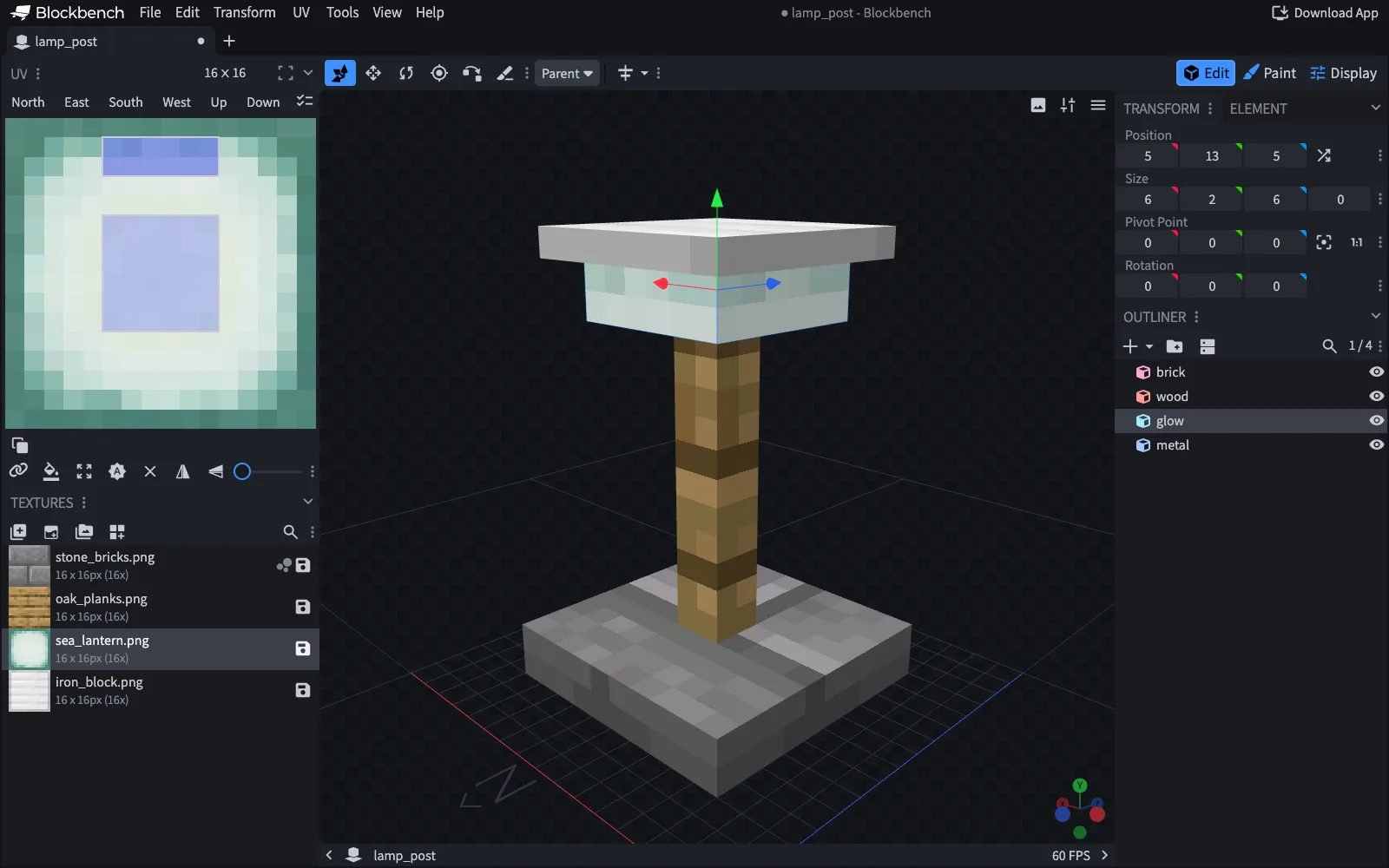
The model below is the kind of file Blockbench writes: a stone brick base, an oak post, a glowing lamp and an iron cap, built from four elements and four vanilla textures.
{
  "parent": "block/block",
  "textures": {
    "brick": "block/stone_bricks",
    "wood": "block/oak_planks",
    "glow": "block/sea_lantern",
    "metal": "block/iron_block",
    "particle": "block/stone_bricks"
  },
  "elements": [
    {
      "from": [3, 0, 3],
      "to": [13, 2, 13],
      "faces": {
        "down": {"texture": "#brick", "cullface": "down"},
        "up": {"texture": "#brick"},
        "north": {"texture": "#brick"},
        "south": {"texture": "#brick"},
        "west": {"texture": "#brick"},
        "east": {"texture": "#brick"}
      }
    },
    {
      "from": [7, 2, 7],
      "to": [9, 13, 9],
      "faces": {
        "down": {"texture": "#wood", "uv": [7, 7, 9, 9]},
        "up": {"texture": "#wood", "uv": [7, 7, 9, 9]},
        "north": {"texture": "#wood", "uv": [7, 3, 9, 14]},
        "south": {"texture": "#wood", "uv": [7, 3, 9, 14]},
        "west": {"texture": "#wood", "uv": [7, 3, 9, 14]},
        "east": {"texture": "#wood", "uv": [7, 3, 9, 14]}
      }
    },
    {
      "from": [5, 13, 5],
      "to": [11, 15, 11],
      "light_emission": 15,
      "faces": {
        "down": {"texture": "#glow"},
        "up": {"texture": "#glow"},
        "north": {"texture": "#glow"},
        "south": {"texture": "#glow"},
        "west": {"texture": "#glow"},
        "east": {"texture": "#glow"}
      }
    },
    {
      "from": [4, 15, 4],
      "to": [12, 16, 12],
      "faces": {
        "down": {"texture": "#metal"},
        "up": {"texture": "#metal"},
        "north": {"texture": "#metal"},
        "south": {"texture": "#metal"},
        "west": {"texture": "#metal"},
        "east": {"texture": "#metal"}
      }
    }
  ]
}
Paste it into the model viewer to turn it around, change a number, and see the result before it goes in a pack.
How the model file works
texturesdefines variables. A face points at one with a hash, so#brickreads thebrickvariable. The valueblock/stone_bricksmeansassets/minecraft/textures/block/stone_bricks.png; leave off the folder prefix and the.png. A custom texture is writtenlamp:block/lamp_glass.particleis the texture used for break particles. Set it, or breaking the thing shows the missing texture.- Each element has
fromandtocorners in 1/16 block units, andfacesfor the sides you want drawn. A face you leave out is invisible. uvis[x1, y1, x2, y2]on a 16 by 16 grid, whatever the real texture size. Swap x1 and x2 to mirror the texture. Leave it out and the game derives it from the element position.cullfacehides a face when a solid block touches that side. Use it on faces that sit on the block edge.light_emission(0 to 15) makes an element render at that minimum light level. It does not light the world around it.rotationturns an element:{ "origin": [8, 8, 8], "axis": "y", "angle": 45 }. Since 1.21.6 the angle is no longer limited to multiples of 22.5 degrees, and since 1.21.11 an element can turn on several axes withx,yandzangles instead ofaxisandangle.parentinherits another model.block/blockbrings the standard display transforms, which is why the item looks right in the inventory and in the hand.
Older tutorials set shade: false on elements. Java 26.3 removed shade and added shade_direction_override instead. If you reuse an older model, delete the old key and test it.
Step 3: add your own textures
Textures are PNG files under assets/<namespace>/textures/. 16 by 16 is the usual size for blocks, but larger squares work and non-square images are allowed. To animate a texture, stack the frames vertically in one PNG and add a file with the same name plus .mcmeta:
{
  "animation": {
    "frametime": 4
  }
}
frametime is in game ticks (20 per second). You can also list frames in a custom order and give single frames their own time. If the image size does not divide into the frame size, the game shows the missing texture.
Step 4: link the model to an item
Since 1.21.4 an item picks its model from an item model definition in assets/<namespace>/items/. The definition for the lamp post is tiny:
{
  "model": {
    "type": "minecraft:model",
    "model": "lamp:block/lamp_post"
  }
}
Any item can use it through the item_model component. The item keeps its real id and behaviour; only the look changes:
/give @s minecraft:stone_bricks[item_model="lamp:lamp_post"]To show it in the world as a decoration, put that item in an item display entity:
/summon minecraft:item_display ~ ~ ~ {item:{id:"minecraft:stone_bricks",count:1,components:{"minecraft:item_model":"lamp:lamp_post"}}}If you want one item to switch looks, use a different definition type. A select definition reads the strings in the custom_model_data component; range_dispatch reads its numbers and condition its flags. Save this one as the same lamp_post.json: it shows a second model, lamp_post_lit, when the item carries the string lit, and the plain one otherwise.
{
  "model": {
    "type": "minecraft:select",
    "property": "minecraft:custom_model_data",
    "cases": [
      { "when": "lit", "model": { "type": "minecraft:model", "model": "lamp:block/lamp_post_lit" } }
    ],
    "fallback": { "type": "minecraft:model", "model": "lamp:block/lamp_post" }
  }
}
/give @s minecraft:stone_bricks[item_model="lamp:lamp_post",custom_model_data={strings:["lit"]}]Step 5: retexture an existing block (optional)
A blockstate file in assets/minecraft/blockstates/ maps the states of a vanilla block to models. The file name must match an existing block, since a file with another name affects nothing. This one makes every stone bricks block in the world use the lamp post model:
{
  "variants": {
    "": { "model": "lamp:block/lamp_post" }
  }
}
That is the limit of a pack in one example: it changes how a block is drawn, for every block of that type, and nothing about what the block is. Use it for a retexture or a remodel of a whole block type (a lantern with a nicer frame, an anvil with a new base), not for adding a block.
Step 6: test and share
- Enable the pack in Options, Resource Packs. Press
F3 + Tto reload packs after each change. - Run the commands above in a creative world. Check the item in the inventory, in hand and on the ground.
- For a server, host the zip and point
server.propertiesat it. The pack must stay under 250 MiB.
resource-pack=https://example.com/lamp-pack.zip
resource-pack-sha1=<sha1 of the zip>
require-resource-pack=true
Common mistakes
- Black and magenta cube. The model or texture was not found. Check the folder, the lowercase file name and that the texture value has no
.pngand notextures/. - Item looks unchanged. The item model definition is missing or sits in
models/item/. Since 1.21.4 it belongs initems/, and the component must name it asnamespace:file_name. - Pack ignored or flagged for another version. The format range in
pack.mcmetadoes not include your game version. - Model rejected. A comma too many, an element beyond -16 to 32, or an old key such as
shade. Paste the JSON in the model viewer to find the line. - Expecting a new block. A pack adds looks, not blocks. Plan the plugin side before you draw forty textures.
Where to go next
- Pick vanilla textures that match your model: browse blocks by colour or look at a single block such as oak planks.
- Build with what exists first. Families shows which materials come with stairs, slabs and walls, so you only make a custom model where nothing vanilla fits.
- Place your finished decorations quickly with the editors in Axiom vs WorldEdit.